

Course availability planning means locating term sections, checking seat and waitlist status, and preparing conflict-free schedules in your planner, then enrolling via your registrar. Start by opening your school’s official schedule or course search tool, selecting the correct term, and checking which sections still have open seats. A planner helps you prepare; it does not register you for anything.
TL;DR:
- Confirm the term and campus before filtering, then check open seats, waitlists, reserved seat rules, meeting details, and eligibility in the official system.
- Build two or three schedule options, lock preferred sections, and prioritize courses offered only certain terms before filling gaps with electives.
- Run the school’s validation check for holds, prerequisites, and unit limits, then register through the official system at your assigned appointment; seats can change quickly.
- If no schedule appears, include full and waitlisted sections, then remove optional time constraints one at a time and check reserved seat rules.
Table of Contents
- How to find available sections with a schedule planner or course search tool
- Build and compare multiple schedule options before you commit
- Validate your schedule and finish registering through your official system
- When to plan, when to register, and what to watch afterward
- Fixing common planner problems: no results, reserved seats, and holds
- How Univyze supports course availability planning
- Keeping major and minor changes in sync with your availability plan
- Getting the most out of advisor meetings during availability planning
- Using past offering patterns to plan ahead and avoid conflicts
- What actually matters when you plan around availability
- Plan your schedule with Univyze, then register where it counts
- FAQ
- Sources
How to find available sections with a schedule planner or course search tool
Every registration cycle starts in the same place: your school’s course search or schedule-builder tool. Before you filter anything, confirm you have selected the right term and campus, since planners often default to the most recent term rather than the one you are registering for.
From there, expand your filters to narrow results by status, modality, and career level (undergraduate versus graduate, for example). Open sections, closed sections, and waitlisted sections are usually marked with distinct labels, and many tools separate reserved seats (set aside for specific majors, cohorts, or class standings) from unreserved ones. According to UC San Diego’s Class Planner guidance, official planners let you explore combinations but do not enroll you, so treat every result as provisional until you check the registration system directly.
A few habits make this step faster:
- Sort by open seats first, then check waitlist counts for closed sections you still want.
- Click into section details to see meeting days, times, instructor, and location before assuming a section fits.
- Note when a course appears in the catalog with no sections that term; it may not be offered, or it may require a special registration path.
- Use export or save options to hold promising sections for comparison later.
If a required course has zero sections listed, do not assume it is permanently unavailable. Some departments add sections closer to the term start, and others run them through a separate portal your advisor can point you to.
Build and compare multiple schedule options before you commit
A single schedule rarely survives contact with real registration. Building two or three alternatives gives you backup options when a section fills between the time you plan and the time you enroll.
Most schedule builders let you lock sections you are confident about while the tool generates combinations around your other choices. This keeps a favorite discussion section fixed while you test different lecture times or lab slots. Once you have a few viable options, compare them side by side:
- Generate multiple schedule combinations using your locked sections and remaining course needs.
- Compare calendars visually to check for tight turnarounds, long gaps, or back-to-back classes across campus.
- Export your preferred schedule to a calendar app using a .gcal or .ical file so you can see it alongside other commitments.
- Import courses from your degree plan directly into the schedule builder when your institution supports it, which reduces manual entry errors.
- Save your top choice as a favorite and move it into your shopping cart once you are ready to register.
This comparison step is where course rotation patterns matter most. If a required course only runs certain semesters, building your schedule around it first and filling electives around the gaps prevents a scheduling conflict down the road.
Validate your schedule and finish registering through your official system
A saved schedule is not a secured one. Before your enrollment appointment, run your school’s validation check, which typically flags holds, missing prerequisites, and unit-load limits that would block registration. According to Cal Poly’s Schedule Builder guidance, saved plans are exploration tools, not guarantees, since seat counts and eligibility rules can shift before your appointment arrives.
Once validated, push your chosen sections into your shopping cart and register at your assigned enrollment appointment. Seat counts move quickly during the first days of registration, and many registrars run nightly or midday waitlist processing that can bump you into a section automatically if a seat opens.
A few fallback moves help when a preferred section closes:
- Join the waitlist rather than abandoning the course entirely.
- Keep a validated alternate section ready to swap in immediately.
- Ask your department about permission numbers if a course shows reserved seats you believe you qualify for.
Pro Tip: Check your cart the morning of your appointment, not just the night before, since overnight waitlist processing can change what is actually open.
When to plan, when to register, and what to watch afterward
Course availability planning runs on a predictable rhythm, and knowing the phases helps you act at the right moment instead of scrambling.
- Before schedules publish: Review your degree plan and catalog, then list required courses and realistic alternates.
- When schedules publish: Build two or three schedule options, run validation, and place your top choice in your cart.
- At your enrollment appointment: Register immediately, then monitor waitlists and nightly seat updates for anything still pending. Boise State’s Schedule Builder guidance recommends treating the appointment window itself as the action point, not a day to revisit your plan.
- After enrollment opens: Watch for instructor, time, or modality changes, and track add/drop deadlines so you are not caught off guard by a shifted schedule.
Fixing common planner problems: no results, reserved seats, and holds
When a planner returns no feasible schedule, the usual culprit is over-constraining. Start with your required courses first, then add preferences like preferred times or avoided breaks one at a time, checking after each addition whether valid combinations still exist.
If you still get nothing, broaden your status filters to include waitlisted or full sections, since a seat can open before your appointment. San José State’s MyScheduler guidance suggests reducing optional breaks and unlocking sections you previously fixed in place, since early constraints can eliminate workable schedules that would otherwise appear.
Reserved-seat notes deserve a closer look too. According to UNT’s Schedule Builder FAQ, sections often display prerequisites, reserved-seat pools, and waitlist occupancy that explain why a seemingly open class is not actually available to you. Before your appointment, confirm:
- Your prerequisites and corequisites are satisfied or in progress as required.
- Any holds on your account are cleared with the right office.
- Your term selection matches the term you intend to register for, since an inactive or wrong term is a common silent error.
Pro Tip: If a course shows reserved seats, check who the reservation applies to before writing off the section. You might already qualify.
How Univyze supports course availability planning
Our dashboard connects your degree requirements directly to live course offerings, so the planning steps above happen in one place instead of across five browser tabs. The term-by-term sequencing shows which required courses fit your remaining plan, and conflict visualization flags overlapping times before you waste an appointment slot testing a schedule that cannot work.
A few ways this supports the workflow described here:
- You can import your degree plan directly into schedule building, cutting manual entry.
- The what-if scenario tool shows how a major or minor change would reshuffle your remaining course needs.
- Likely alternates appear when a required course looks tight on seats, based on your broader plan.
We are a planning tool, not your registrar or your academic advisor. You still complete enrollment in your school’s official system, and you should confirm your degree audit and requirement interpretation with your advisor before finalizing any plan.
Keeping major and minor changes in sync with your availability plan
Switching a major or adding a minor midyear can quietly undo weeks of schedule planning, since requirement changes ripple into which courses you still need and when they are offered. The safest approach is to update your degree plan the moment a change is official, not after you have already built a term schedule around the old requirements.
Once your requirements update, recheck which remaining courses are rotation-limited. A course that only runs in fall, for instance, needs to be locked into your plan early rather than treated as a flexible elective slot. This is also the point to revisit prerequisite chains, since a new major can introduce courses with different prerequisite sequences than your previous plan assumed.
Our visual degree mapping tool is built around this kind of change: when your requirements shift, the term-by-term view updates so you can see immediately which future terms need adjustment, rather than discovering a conflict the week before registration. Even so, requirement interpretations can vary by catalog year and department, so confirm any major or minor change against your official degree audit and with your advisor before registering around it.
Getting the most out of advisor meetings during availability planning
An advisor meeting works best when you arrive with a draft schedule already built rather than a blank slate. Bring your top one or two schedule options, your list of required courses and alternates, and specific questions about anything ambiguous in your requirements, like whether a transfer course satisfies a specific requirement or whether a rotation gap affects your timeline.
Timing matters as much as preparation. Meeting with your advisor before schedules publish gives you a chance to clarify requirement questions while there is still room to adjust your plan, rather than after you have already committed to a cart full of sections. If your school requires an advising hold to be cleared before registration, schedule that meeting early enough that a follow-up conversation would not push you past your enrollment appointment.
Advisors are also the best source for catching errors a planner cannot see, like whether a course you assume is interchangeable with another actually is, or whether a prerequisite waiver is available for your situation. Treat your planner’s output as the draft and your advisor conversation as the check, not the other way around.
Using past offering patterns to plan ahead and avoid conflicts
Courses that are rotation-limited (offered only certain semesters or alternating years) create the tightest scheduling constraints, and the earlier you identify them, the more flexibility you keep elsewhere in your plan. Checking how a course has been offered in recent terms gives you a reasonable sense of its pattern, even though departments can and do change offerings without much notice.
Academic schedulers use a more formal version of this same logic. According to CUNY’s Course Demand Projections guide, demand analytics combine historical fill rates with current enrollment and waitlist data to flag sections as underfilled, balanced, or overfilled, which helps departments decide whether to add sections, shift modality, or adjust meeting times. These tools support departmental judgment; they do not replace it.
As a student, you can apply a simplified version of this thinking: if a course has historically filled within the first day of registration, treat it as a priority to register for immediately rather than circling back later. If a course has reliably had open seats weeks into the term, you have more room to sequence it later in your plan. Our term-by-term planning tools are built to help you spot these patterns across your remaining requirements so rotation-limited courses do not sneak up on you.

What actually matters when you plan around availability
Plan wide early, then narrow late: build more schedule options than you think you need, and cut them down only once seats and waitlists start moving for real. The biggest mistake I see is treating a first-draft schedule as final before registration even opens.
Prioritize courses tied to your degree requirements over convenience electives, and always keep at least one validated alternate ready. Your registrar and your advisor remain the final word on what actually counts and what you are actually enrolled in.
— Ryan
Plan your schedule with Univyze, then register where it counts
This tool takes the guesswork out of matching your degree requirements to the courses actually offered each term, so you spend less time cross-referencing spreadsheets and more time confirming your final picks. The dashboard handles automatic term-by-term planning, AP credit, dual enrollment, transfer credits, and summer sessions in one view, with what-if scenarios if you are weighing a major change.
- Explore available pricing plans, including free and paid options.
- See how our degree planning dashboard works before you commit.
- Review your family’s budget planning alongside your course plan if tuition timing is a factor.
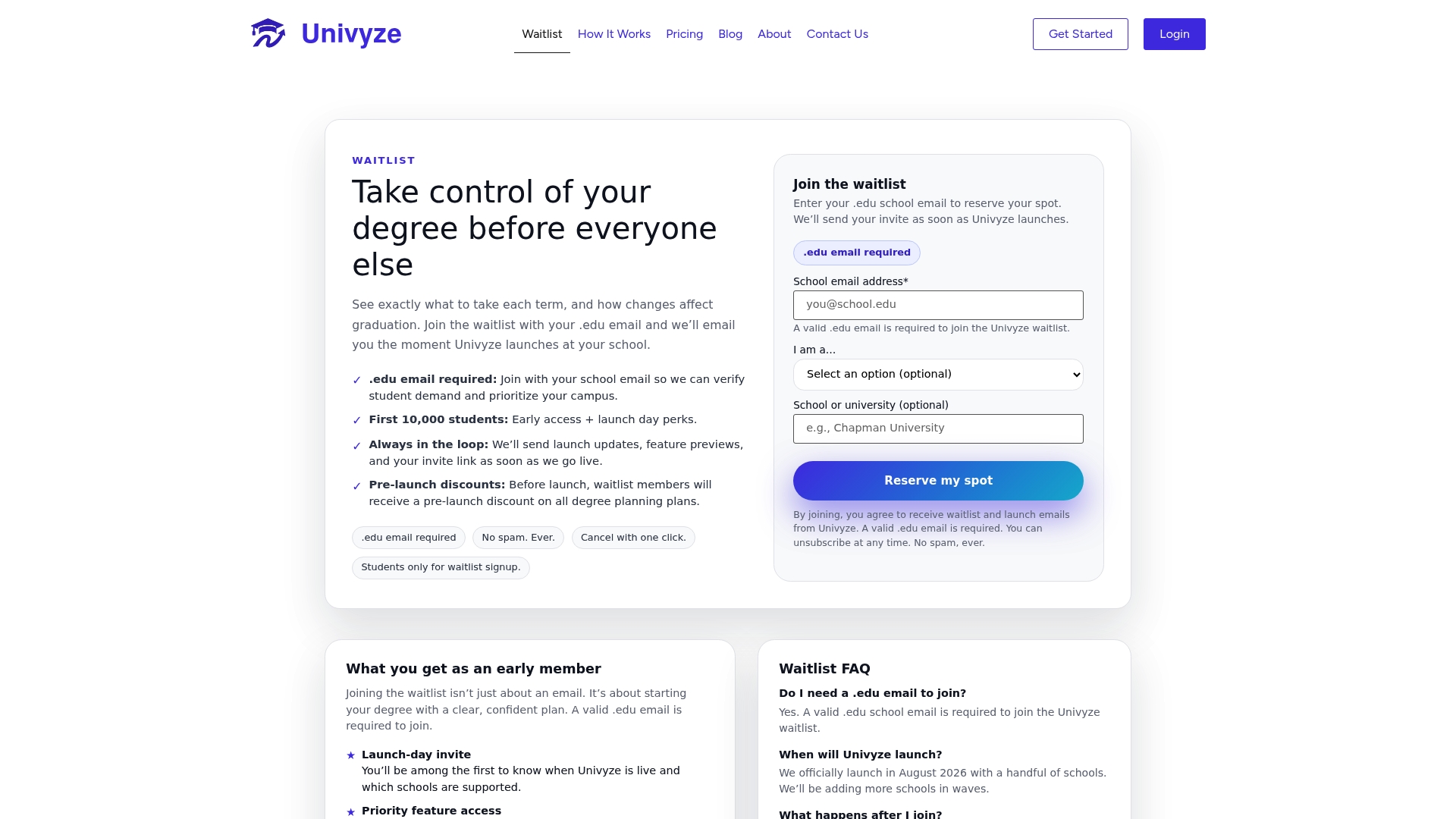
We are a planning aid, not your registrar. Always complete enrollment in your official system and confirm your degree audit with your advisor. Join our waitlist to get started.
FAQ
What does course availability planning actually involve?
Course availability planning means identifying which sections of a course are offered in a given term, checking their seat and waitlist status, and building a conflict-free schedule around them before registering. It typically uses a schedule planner or course search tool to filter by term, status, and modality, as described in UC San Diego’s Class Planner help.
Does a schedule planner guarantee I get into a class?
No, a schedule planner only helps you explore and prepare schedule options; it does not reserve or confirm a seat. You still need to complete registration in your school’s official system, since seat counts and eligibility can change before your appointment, according to Cal Poly’s Schedule Builder guidance.
How do I know if a closed course is worth joining the waitlist for?
Check the waitlist count and how recently it has moved, since many schools run nightly or midday waitlist processing during the first days of registration. If the waitlist is short relative to past patterns for that course, it is often worth joining rather than abandoning the section entirely.
What should I do if my planner shows no valid schedules?
Broaden your filters to include waitlisted or full sections, remove optional time preferences, and unlock any sections you previously fixed in place. Over-constraining early is a common cause of empty results, and loosening one constraint at a time usually surfaces workable combinations, per San José State’s MyScheduler guidance.
How can Univyze help with course availability planning specifically?
Our dashboard links your degree requirements to live course offerings, so you can see which required courses fit your remaining plan and spot conflicts before your enrollment appointment. We are a planning tool, so you still complete enrollment through your school’s official registration system and confirm requirement details with your advisor.
Sources
- Cal Poly — Schedule Builder guidance
- UNT — Schedule Builder FAQ
- Boise State — Schedule Builder guidance
- CUNY — Course Demand Projections guide