

The Academic Requirements Report (ARR) is the official CSULB degree audit that gives you a real-time snapshot of every requirement you have completed, every course in progress, and every gap still standing between you and graduation. Accessed through the MyCSULB Student Center, the ARR consolidates transfer, test, and CSULB course credits into one report. CSULB degree planning starts and ends with this document. Students who skip it and rely on memory or informal tools routinely discover missing requirements too late to fix without adding an extra semester. This guide walks you through reading your ARR, pairing it with the Degree Planner, timing your advising sessions, and avoiding the mistakes that cost students real money and real time.
How to access and interpret your ARR at CSULB
The ARR lives inside your MyCSULB Student Center. Log in using your Single Sign-On credentials, click the “Academics” drop-down menu, and select “Academic Requirements.” The report loads as a full audit of your degree, organized by requirement category.
Reading the color codes
The color codes are the fastest way to read your degree status. Green checkmarks mean complete, yellow diamonds mean in progress, and red squares mean the requirement is unmet. Every red square is a course or category you still need to address before you can graduate.
- Green checkmark: Requirement satisfied. No action needed.
- Yellow diamond: A course is in progress this term. Wait for the grade before counting it as done.
- Red square: Requirement is missing. This is your planning priority.
- Collapse all button: Click this to collapse every category and see only the top-level status of each requirement group. This is the fastest way to spot gaps without scrolling through hundreds of lines.
Pro Tip: Use “collapse all” at the start of every planning session. You will see your entire degree status in one screen instead of hunting through expanded sections.
Verifying transfer and test credits
Transfer credits and AP exam scores do not always appear automatically. Verify your transfer credits through the Transfer Credit Report in MyCSULB. If a credit is missing, submit your official transcript to Enrollment Services. Never plan your next semester assuming a transfer credit applied until you see it reflected in the ARR with a green checkmark.
One common misread: a yellow diamond does not mean a requirement is satisfied. Students sometimes register for a follow-on course assuming the in-progress class will pass. Wait for the grade to post before treating that requirement as complete.
How does the Degree Planner work with your ARR?
The Degree Planner is a scheduling tool inside MyCSULB that lets you map out which courses you plan to take each term. It is useful for visualizing a multi-semester path. The critical distinction is that Degree Planner is unofficial and cannot replace the ARR for graduation verification.

The Degree Planner can show inaccurate or incomplete requirements for students who are pre-major, undeclared, or who have not yet had a formal graduation planning appointment with an advisor. Treating its output as final is one of the most common planning errors at CSULB.
How to use both tools together
The right workflow is to review your ARR first, identify every red square, and then open the Degree Planner to schedule courses that address those gaps. Think of the ARR as the source of truth and the Degree Planner as your working draft.
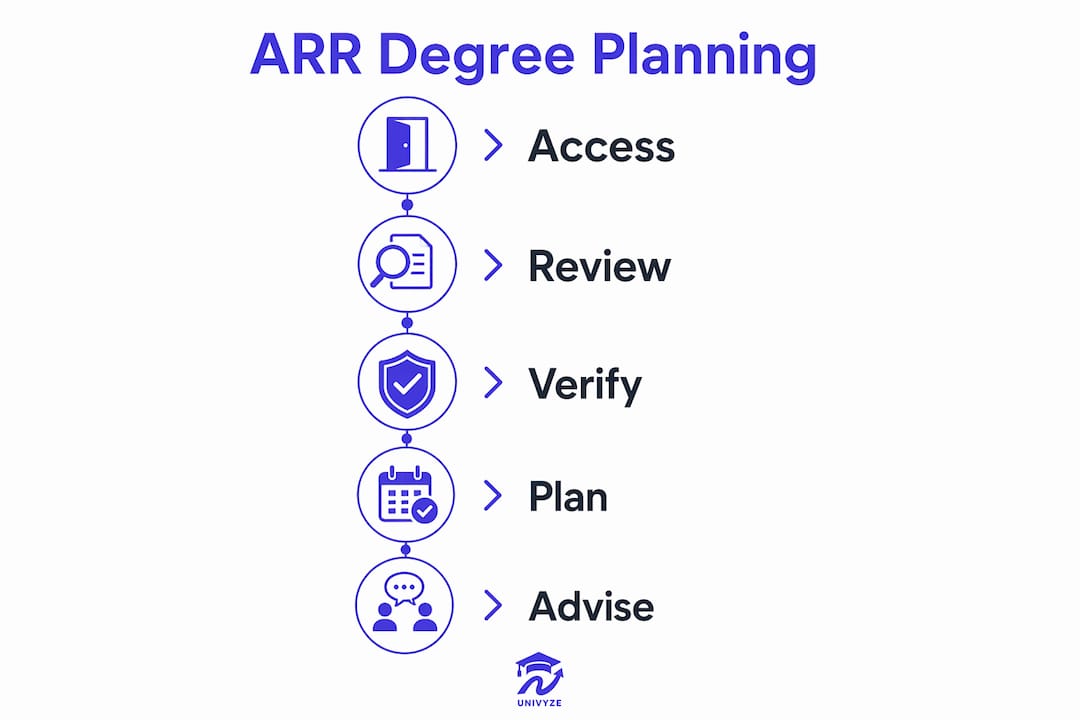
- Step 1: Open your ARR and use “collapse all” to identify every unmet requirement.
- Step 2: Note which requirements have prerequisites you have not yet completed.
- Step 3: Open the Degree Planner and add courses that satisfy the red-square requirements in the correct sequence.
- Step 4: Cross-check every course you add in the Degree Planner against your ARR to confirm it maps to an actual unmet requirement.
- Step 5: Bring both your ARR printout and your Degree Planner draft to your advising appointment for final validation.
Pro Tip: Screenshot your ARR after every registration period. If a requirement status changes unexpectedly, you will have a record of what it looked like before.
Advising experts confirm that Degree Planner alone is insufficient for accurate graduation planning. The ARR and an advisor consultation are both required before you finalize any multi-semester plan. This is especially true if you have changed your major, added a concentration, or transferred from another institution.
When and how to use academic advising to strengthen your plan
Academic advising is not optional for students who want to graduate on time. Advisors help interpret ARR data, align your course selections with university policy, and catch planning errors before they cost you a semester.
The recommended advising windows are specific. Contact your advisor in september or early october for fall planning, and in february or early march for spring planning. These windows align with early registration periods, which means you get first access to the courses your advisor recommends before sections fill up.
How to prepare for your advising appointment
Arriving unprepared wastes your appointment and your advisor’s time. Prepared students get more out of every session.
- Print or screenshot your current ARR. Know which requirements are red before you walk in.
- Write a list of courses you are considering. Include backup options in case your first choice is full.
- Note any policy questions. If you are thinking about adding a minor, a second major, or a late withdrawal, bring those questions specifically.
- Check prerequisites in advance. Look up the catalog requirements for every course on your list so you are not surprised during the meeting.
- Bring your Degree Planner draft. Your advisor can confirm whether your planned sequence is realistic and flag any conflicts.
Pro Tip: Ask your advisor to walk through your ARR with you line by line at least once. Many students discover fulfilled requirements they did not know they had, which opens up room for electives or earlier graduation.
Timely advising attendance with a prepared ARR and course list measurably reduces planning errors that lead to delayed graduation. Students who show up without their ARR often leave with vague guidance instead of a confirmed plan.
What are the most common ARR and Degree Planner mistakes?
Most graduation delays at CSULB trace back to a small set of repeated errors. Recognizing them in advance is the fastest way to protect your timeline.
- Relying only on the Degree Planner. The Degree Planner is a draft tool. The ARR is the official record. Always verify your Degree Planner against your ARR before registering.
- Ignoring transfer or test credits. AP scores and community college credits do not always post automatically. Check your Transfer Credit Report and confirm every credit appears in your ARR before planning around it.
- Skipping “collapse all.” Students who scroll through an expanded ARR often miss red squares buried inside long requirement lists. Use “collapse all” first, every time.
- Arriving at advising unprepared. Students who show up without a reviewed ARR or a course list get generic advice. Specific preparation produces specific guidance.
- Overlooking GE upper vs. lower division distinctions. General Education requirements at CSULB distinguish between lower division (typically 100-200 level) and upper division (300-400 level) courses. Completing the wrong level does not satisfy the requirement.
A note on adding minors and second majors: CSULB enforces a Timely Graduation Policy that discourages students from adding minors or second majors as a reason to extend enrollment. Advisors check for adherence to this policy during planning appointments. If you are considering adding a credential, discuss the timeline impact with your advisor before making it official.
Knowing these common graduation delays before they happen puts you in a position to avoid them entirely.
Key Takeaways
The ARR is the only official degree audit at CSULB, and every course plan you build should start with it, not with the Degree Planner alone.
| Point | Details |
|---|---|
| ARR is the official audit | Use the ARR in MyCSULB, not the Degree Planner, to verify your graduation status. |
| Color codes drive decisions | Red squares are your planning priorities; green checkmarks need no action. |
| Degree Planner is a draft | Cross-check every Degree Planner entry against your ARR before registering for courses. |
| Advising timing matters | Contact your advisor in september or october for fall, and february or march for spring. |
| Preparation multiplies results | Bring a reviewed ARR and a course list to every advising appointment for specific guidance. |
Why the ARR deserves more respect than most students give it
Most students treat the ARR like a formality. They glance at it once before registration, see a wall of text, and close the tab. That is a mistake I have seen cost students an entire extra semester.
The ARR is not a scheduling convenience. It is the definitive record of where you stand. Every course you plan, every requirement you think you have satisfied, every transfer credit you are counting on: all of it needs to be confirmed in the ARR before you build around it. The Degree Planner is a useful drafting tool, but it is not the source of truth. Treating a Degree Planner output as final without ARR validation is like filing taxes from memory instead of checking your W-2.
The advising timing piece is also underestimated. Students who book appointments in late november or april are competing for the last available sections. Students who go in september or february get their advisor’s full attention and first pick of courses. That timing difference alone can determine whether you graduate on schedule or spend an extra term waiting for a required course to reopen.
My honest advice: treat your ARR like a living document. Check it after every grade posts. Screenshot it after every registration period. And never finalize a semester plan without confirming it against your ARR and your advisor’s input. The students who graduate on time are not smarter. They are just more organized about this one thing.
— Ryan
Univyze and CSULB degree planning: a smarter way to map your path
Keeping your ARR, Degree Planner, and advising notes organized across multiple semesters is harder than it sounds. Univyze is a planning tool built to help CSULB students build a multi-year degree plan that accounts for transfer credits, AP credits, summer sessions, and what-if scenarios like major changes or added concentrations.
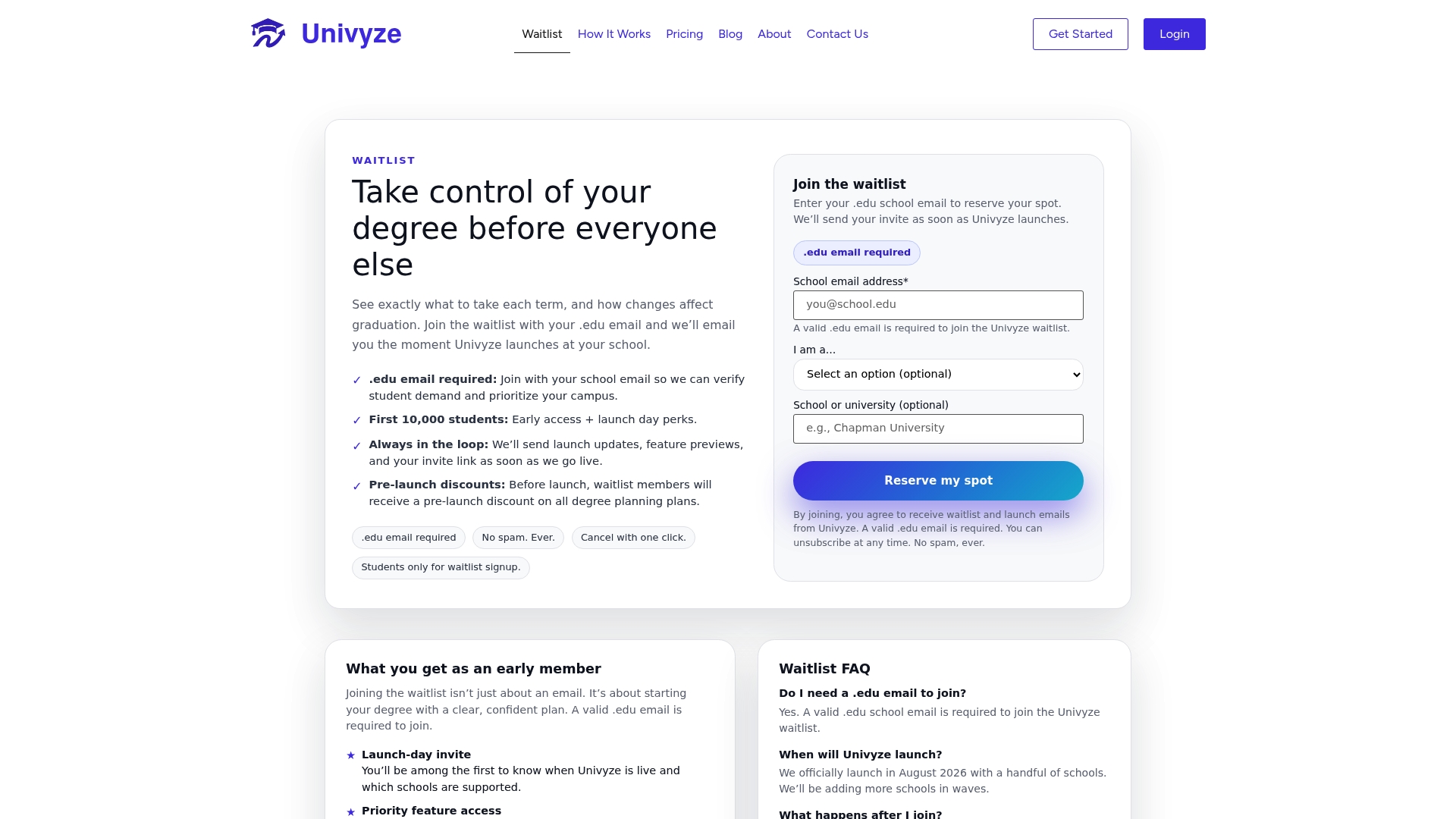
Univyze does not replace your ARR or your advisor. It gives you a dynamic dashboard that shows how each course decision affects your graduation timeline, so you walk into every advising appointment with a clearer picture. You can also plan courses that count toward your actual requirements instead of discovering gaps at the end of your junior year. Students should always verify their plans with their official degree audit, university catalog, registrar, and advisor. Join the Univyze waitlist and start building a plan you can actually trust.
FAQ
What is the ARR at CSULB?
The ARR (Academic Requirements Report) is the official degree audit at CSULB, accessed through MyCSULB Student Center under the Academics menu. It shows completed, in-progress, and missing requirements using color-coded indicators in real time.
How do I read the color codes in my CSULB ARR?
Green checkmarks indicate a completed requirement, yellow diamonds show a course currently in progress, and red squares mark unmet requirements that need to be addressed before graduation.
Is the Degree Planner the same as the ARR?
No. The Degree Planner is an unofficial scheduling tool and cannot replace the ARR for graduation verification. Always cross-check your Degree Planner entries against your ARR and confirm with an advisor.
When should I meet with my academic advisor at CSULB?
The recommended windows are september or early october for fall planning and february or early march for spring planning. Arriving with a reviewed ARR and a course list produces the most specific guidance.
What happens if my transfer credits are missing from my ARR?
Missing transfer credits require you to submit your official transcript to Enrollment Services. Check your Transfer Credit Report in MyCSULB to confirm every credit has posted before planning around it.