

A degree audit verifies what you have completed; a degree planner maps when you will take the remaining courses. Use the audit as your source of truth for requirements, and the planner to build a term-by-term schedule toward them. Check the audit first, draft a plan, validate it against the audit, then bring both to your advisor.
TL;DR:
- The degree audit shows your current progress and remains static, while the planner sequences your remaining courses across future terms in a draft format.
- The audit verifies requirements already completed, whereas the planner estimates when and how to take courses, respecting unit limits and offering prerequisites.
- Always validate your planner draft against the linked audit view before registration, as scheduled courses do not count until officially posted.
- Re-run both the audit and the planner after each registration cycle to ensure your plan remains accurate and reflects any rule or requirement changes.
- Modern tools increasingly link audit and planner views into a shared dashboard, but they do not replace official evaluations or advisor approval.
Table of Contents
- What a degree audit is and how students use it
- What a degree planner is and the features students rely on
- Practical, side-by-side differences students and advisors need to know
- Step-by-step workflow: use audit and planner together each term
- Common pitfalls and quick advisor-recommended checks
- What an integrated audit and planner dashboard looks like
- Why the workflow matters more than the tool
- A clearer way to plan your remaining terms
- Sources
- FAQ
What a degree audit is and how students use it
A degree audit compares your academic record against your official degree requirements, sorting everything into what you have completed, what is in progress, and what remains unmet, according to degree audit documentation from the University of North Texas. It is a snapshot of your standing, not a forecast.
Most audit systems also support what-if audits, which let you simulate a different major, minor, or catalog year without changing your actual record. That makes them useful for testing an idea before you commit to it.
- Run or view an audit through your registrar’s portal, choosing web or PDF format depending on the system.
- Use a what-if audit to see how your existing credits would apply under a different program.
- Save or export completed audits, since some systems purge older versions after a set period.
- Treat the audit as informational: confirm graduation eligibility with your advisor or registrar before relying on it.
Audits do not notify your university of graduation intent on their own. That step still requires a formal application through your registrar.
What a degree planner is and the features students rely on
A degree planner is the forward-looking half of the equation. Instead of showing what you have done, it helps you sequence what is left, term by term, so you can see a realistic path to your remaining requirements.
Planners built into systems like Degree Works typically let you drag courses into future terms, respect unit limits per term, and estimate a time-to-degree based on your plan. Many also connect back to the audit itself.
- Place remaining requirements into semester-by-semester slots to build a draft schedule.
- Set unit caps per term so the plan reflects a realistic course load.
- Open a linked audit view, often called DPR with planned courses, to check whether planned courses actually satisfy requirements.
- Adjust the plan freely since it is a draft, not a binding schedule.
A planner does not declare a major, register you for classes, or file paperwork on your behalf. It is a working hypothesis about your future terms, and it stays that way until you act on it through official channels.
Practical, side-by-side differences students and advisors need to know
The two tools answer different questions, and mixing them up is where planning mistakes start. An audit answers “where do I stand.” A planner answers “what should I take next, and when.”
- Primary purpose: the audit verifies completed and remaining requirements; the planner sequences the courses still needed to finish them.
- Time orientation: the audit looks backward and at your current standing; the planner looks forward across future terms.
- Official status: an evaluated audit can support graduation verification, while a planner never changes your official record on its own, according to guidance from the Buckeye Degree Planner FAQs.
- What-if capability: audits simulate how existing credits would apply under a different program or catalog; planners simulate how a course sequence would fit into future terms.
- Update cadence: the audit pulls from your official student record and registrar data, while the planner updates as you draft, revise, or register for courses.
- Who acts on the output: students use both day to day, advisors validate the plan against requirements, and registrars finalize official status.
Even inside an integrated system, the audit is the record and the planner is the hypothesis. That distinction, laid out clearly in Degree Works planner documentation, is the single most useful thing to remember when the two views sit side by side on the same screen. It is easy to assume a planned course “counts” because it appears in the audit interface. It does not count until it is completed and posted.
Step-by-step workflow: use audit and planner together each term
Running these tools in the right order each term catches problems before they become extra semesters.
- Run the latest audit. Note unmet requirements, your catalog year, and any residency or GPA constraints tied to your program.
- Build a planner draft. Sequence the remaining required courses, checking prerequisites and whether each course is typically offered in the term you want it.
- Validate with the linked audit view. Open DPR with planned courses, or the equivalent audit-with-planned-courses feature, to confirm your planned courses actually satisfy the requirements you think they do, a step described in the Degree Works user’s guide.
- Export both documents. Bring the audit and the plan to your advising appointment with specific questions ready, since advisors note these tools are meant to prepare for advising, not replace it, per UNT’s degree audit FAQ.
- Re-run everything after registration. Update the planner to reflect what you actually enrolled in, and re-run a what-if audit before making any major or minor change.
Pro Tip: Save a PDF of your audit each term. If a requirement or substitution ever gets disputed later, you will have a dated record to compare against.
A related walkthrough on building a term-by-term degree plan covers how this looks inside a Degree Works interface specifically.
Common pitfalls and quick advisor-recommended checks
The most frequent planning mistake is “ghost planning”: dropping a course into a future term without confirming it is actually offered then, or that you meet its prerequisites. Catalog-year windows matter too, since a what-if audit may not support simulations across every catalog year.
- Confirm a planned course is offered in that specific term before building around it.
- Check how and when transfer or AP credit posts, since timing affects which requirements it can satisfy.
- Remember that a planner draft is not an official major declaration or graduation application.
- Ask your advisor to verify substitutions, double-counting rules, and residency requirements before you finalize anything.
Pro Tip: If you are close to a major change, run a what-if audit first and check the catalog-year window before you touch your planner draft.
A degree requirement checklist is a useful companion for spotting these gaps before an advising appointment.
What an integrated audit and planner dashboard looks like
Modern planning tools increasingly link the audit and the planner into one dashboard so a planned course shows its effect on requirements immediately, rather than requiring you to switch views. Univyze builds toward this by connecting degree requirements to live course offerings, so a term-by-term plan reflects what is actually available to schedule.
- What-if simulations for exploring a major or minor change.
- Support for AP credit, dual enrollment, and transfer credits within the same plan.
- Term availability checks that flag whether a planned course is realistic.
- Shared views so parents or advisors can see the same plan you are working from.
These features improve visibility into your own progress. They do not replace a formal audit evaluation or your advisor’s sign-off on graduation eligibility.
Why the workflow matters more than the tool
The conventional advice treats the audit and the planner as competing systems, one for “the truth” and one for “the plan,” and tells students to pick whichever their school pushes harder. That framing misses the point. The audit and the planner solve different problems, and treating either one as sufficient on its own is what leads to a surprise unmet requirement in your final semester.

What gets underrated is the validation step, opening the audit-with-planned-courses view before registering, not after. Most students build a planner draft, feel satisfied it looks complete, and skip back to the audit only once something goes wrong. Flip that order. The audit should be the last thing you check before you register, not the first thing you check when a requirement is missing.
If you take one thing from this: build the habit of re-running both after every registration cycle, not just before advising appointments. Requirements, prerequisites, and catalog rules shift more often than students expect, and a plan built last term can go stale faster than it looks.
— Ryan
A clearer way to plan your remaining terms
You can use a dashboard that links degree requirements to course offerings, so your term-by-term plan reflects what you can actually schedule, including what-if scenarios, AP credit, dual enrollment, and transfer courses, with a shared view your parents or advisor can also see.
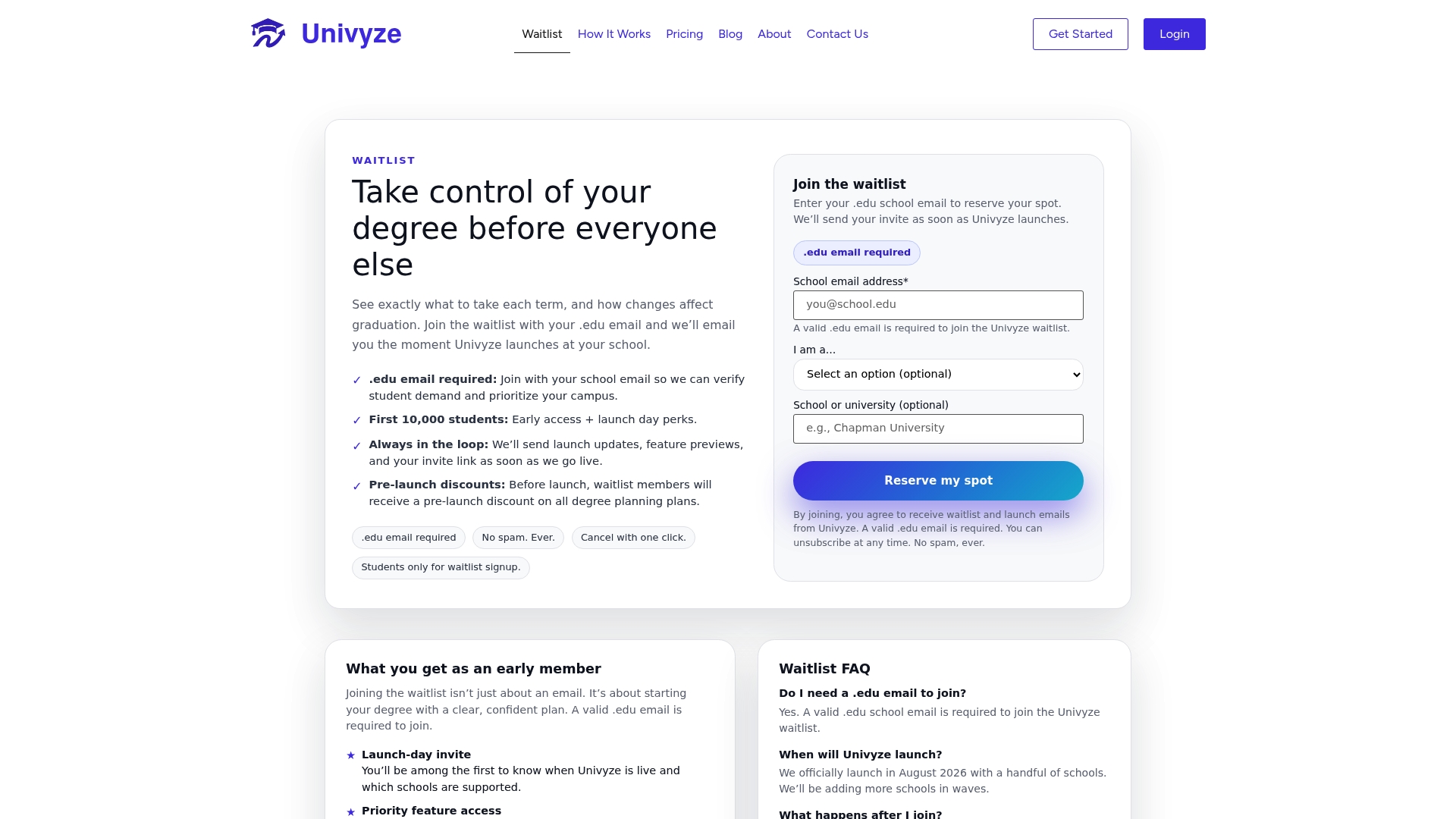
Univyze does not replace your official degree audit or your advisor’s approval. It is built to help you walk into advising appointments with a stronger plan and sharper questions. If that sounds useful, join the Univyze waitlist to get access as it opens up.
Sources
- Online Degree Audit Documentation – Students
- Degree works user’s guide
- Online Degree Audit – FAQs | University of North Texas
- Buckeye Degree Planner FAQs
FAQ
Is a degree audit a degree plan?
No, they serve different purposes. A degree audit verifies what you have completed, are currently taking, and still need, according to UNT’s audit documentation, while a degree plan or planner sequences the courses you still need across future terms.
What are the four types of audits?
Definitions vary by institution, so there is no single universal list. Common categories include a standard audit against your declared program, a what-if audit for exploring a different major or minor, an audit with planned courses that shows how a draft plan would apply, and an evaluated audit used for formal graduation review.
Can you provide an example of a degree audit?
A typical audit lists your degree requirements in categories such as general education, major courses, and electives, marking each as completed, in progress, or still needed. Systems like Degree Works also let you view the same audit with planned courses layered in, showing markers for which planned courses would satisfy which requirements, per the Degree Works user’s guide.
What is a degree planner?
A degree planner is a tool for organizing your remaining coursework into future terms, often with drag-and-drop scheduling and per-term unit limits. It helps you estimate a path to completion, but it does not officially register you for classes or change your academic record.
How do I know if my planned courses actually count?
Open the linked audit view, often labeled DPR with planned courses, after building your plan. That view shows whether each planned course satisfies the requirement you intended, which is the step advisors recommend before registering, as noted in UNT’s degree audit FAQ.