

Degree-planning software is a visual, term-by-term dashboard that maps official degree requirements to real course offerings and creates “what-if” plans to help students finish on time. Think of it as a dynamic roadmap that visualizes your semester sequence, enforces prerequisite chains, and lets you test schedule changes before they cost you a semester. Three benefits stand out immediately:
- Visualize progress across every requirement category at a glance
- Sequence courses to avoid prerequisite bottlenecks and registration conflicts
- Run what-if scenarios to model a major change, an early graduation path, or a gap semester before committing
One important note before going further: degree-planning software is not an official degree audit. Always confirm your plan with your university registrar, official degree audit tool, and academic advisor before registering.
Key Takeaways
Degree-planning software reduces the risk of extra semesters by making prerequisite chains, credit gaps, and what-if scenarios visible before registration, not after.
| Point | Details |
|---|---|
| What it is | A visual dashboard mapping degree requirements to real course offerings, term by term. |
| Top three benefits | Visualize progress, sequence courses to avoid delays, and run what-if scenarios before committing. |
| Verification is mandatory | Always cross-check your plan with your official degree audit, registrar, and academic advisor. |
| Costliest mistake | Ignoring prerequisite chains can push a required course back a full year. |
| Univyze | Offers automatic term-by-term planning, what-if scenarios, and transfer/AP credit handling; join the waitlist at univyze.com. |
Table of Contents
- Who benefits from degree-planning software?
- What features should a degree planner include?
- How to build your degree plan step by step
- Real scenarios and how the planner fits each one
- Best practices and mistakes that add semesters
- What planning software cannot do, and how to verify
- How to evaluate and choose a degree-planning tool
- Why Univyze addresses these planning problems directly
- A perspective worth considering
- Univyze makes your degree plan visible and manageable
- Sources
- FAQ
Who benefits from degree-planning software?
The role of college support services explained through a planning lens comes down to one question: who needs clarity about their path to graduation? The answer is almost everyone involved.
- Freshmen and undeclared students get a four-year semester roadmap from day one, so no requirement sneaks up on them in year three.
- Transfer students can map evaluated transfer credits against remaining requirements and build a condensed two- or three-year plan.
- Students switching majors can run a what-if scenario to see exactly how many credits carry over and how many new semesters the change adds.
- Parents get shared visibility into their student’s progress without needing to interpret a dense transcript.
- Academic advisors can review a student’s term-by-term plan before a meeting, making the conversation faster and more specific.
Students at CSULB, UCI, UCLA, and USC should verify every plan against their official degree audit, university catalog, and registrar, since institutional requirements can differ from what any third-party tool displays.
What features should a degree planner include?
Not every tool is built the same. These are the capabilities that actually affect whether you graduate on time, based on multi-year planning guidance and common planning pitfalls:
- Dynamic dashboard — shows completed, in-progress, and remaining requirements in one view
- Term-by-term planning — lets you drag courses into future semesters and see the full timeline update
- Prerequisite and sequence mapping — flags when a course requires one you haven’t taken yet, preventing a registration error that costs a semester
- Course catalog integration — pulls real offerings so you’re not planning around a class that only runs in spring
- Transfer and AP credit handling — maps dual enrollment, AP scores, and transfer credits to specific requirements
- What-if scenario analysis — models a major change, minor addition, or course swap without altering your live plan
- Schedule conflict detection — catches time overlaps between labs, lectures, and recitations before you register
- GPA and credit counters — tracks cumulative credits and GPA projections alongside requirements
- Family and advisor sharing — gives parents or advisors a read-only view of your current plan
- Early-graduation optimization — identifies summer session or overload opportunities to compress your timeline
Pro Tip: Treat your planner as the single source of truth for your degree. Every course decision, credit transfer, and schedule change goes in there first, so nothing falls through the cracks.
Pro Tip: Run a what-if scenario the week before your advising appointment. Walk in with a printed version of two or three paths. Your advisor can confirm which one actually works, and the meeting becomes a decision session instead of a discovery session.
How to build your degree plan step by step
A good planner is only useful if you actually work through it systematically. Here’s a repeatable process, from first login to ongoing maintenance:
- Select your school, catalog year, and major. Catalog year matters because requirements can change between cohorts.
- Upload or enter your transcript. Include AP scores, dual enrollment credits, and any transfer coursework.
- Map evaluated credits to requirements. Confirm which credits the planner assigns to which requirement categories, then flag any discrepancies for your registrar.
- Build your term-by-term plan. Start with required courses that have long prerequisite chains. Sequence everything else around them.
- Run what-if scenarios. Test a minor, a double major, or a one-semester leave before you commit.
- Bring the plan to your advising meeting. Use the degree requirement checklist as a reference and ask your advisor to flag any discrepancies with the official audit.
- Monitor and adjust each semester. Re-verify whenever a course is dropped, a transfer credit is re-evaluated, or a requirement changes.
What to bring to an advising meeting:
- Printed or shared term-by-term plan
- List of any transfer or AP credits still under review
- Two or three what-if scenarios you want to discuss
- Your official degree audit from the registrar’s portal
Re-verify your plan against the official degree audit any time your major, catalog year, or transfer credit status changes.
Real scenarios and how the planner fits each one
Different situations call for different features. Here’s how the tool maps to four common cases, drawing on schedule-building basics for first-term students:
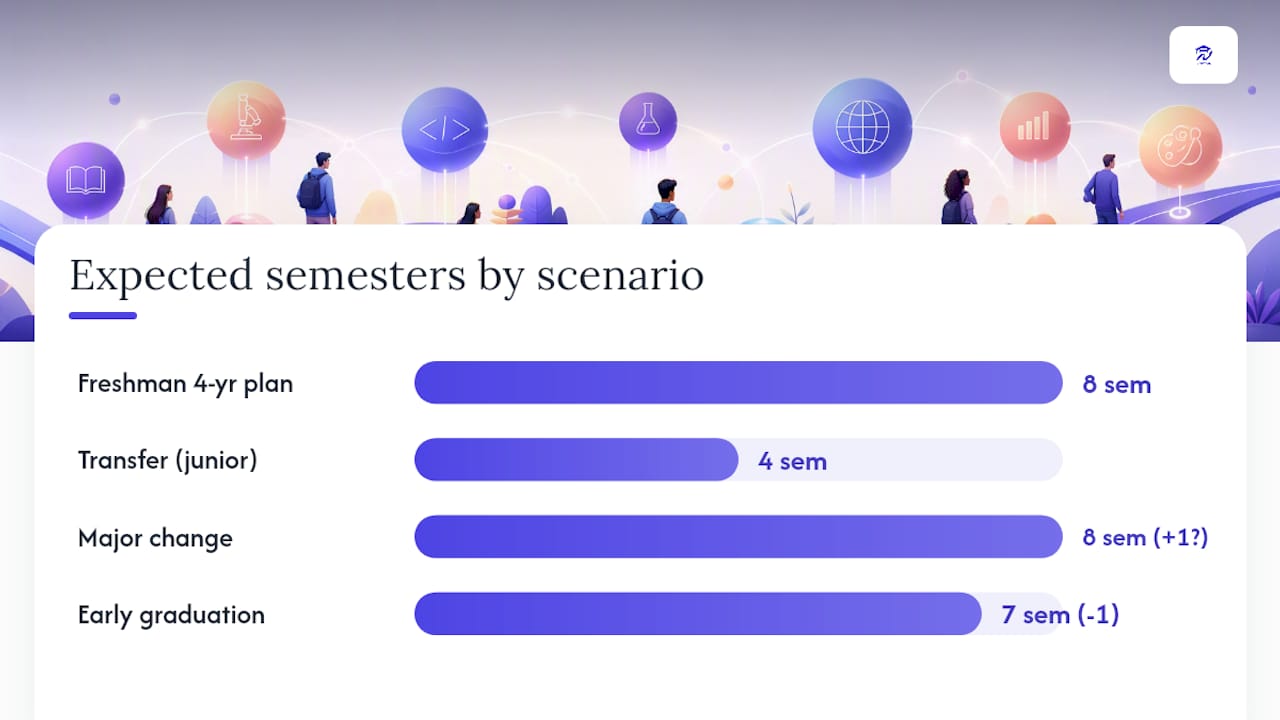
- Freshman planning a four-year path. Enter your intended major and any AP credits on day one. The planner builds a draft eight-semester roadmap. Decision point: end of sophomore year, when you confirm or change your major.
- Transfer student entering as a junior. Upload your community college transcript. The planner maps evaluated credits and shows exactly which requirements remain. A two-year plan is realistic if the evaluation goes smoothly, but confirm every credit with the registrar before banking on it.
- Student changing majors mid-degree. Run a what-if scenario with the new major. The planner shows how many credits carry over, how many new requirements appear, and whether you can still finish in four years or need an extra semester. This is the scenario where the tool pays for itself in clarity alone.
- Student targeting early graduation. The planner identifies which requirements can be satisfied in summer sessions or through overloaded semesters. AP and dual enrollment credits often shave a full semester. Pair this with the early graduation guide for a realistic strategy.
Summer sessions, AP credits, and dual enrollment all reduce total semesters when mapped correctly. The planner makes those reductions visible before you register, not after.
Best practices and mistakes that add semesters
The most expensive planning errors are also the most preventable. Careful course planning directly reduces the risk of taking credits that don’t count toward graduation.
Do:
- Verify prerequisites before adding a course to any future semester
- Check whether a course runs every semester or only once a year
- Confirm transfer credits are officially evaluated before building a plan around them
- Use the planner to track general education requirements separately from major requirements and consider how Spectrum Disorder accommodations work for students if applicable
Don’t:
- Ignore prerequisite chains — missing one can push a required course back a full year
- Double-book labs and lectures in the same time slot
- Assume a course counts toward your major without checking the catalog
- Skip the what-if tool when considering a major change
Pro Tip: Before registration opens each semester, run a “graduation date stress-test” in your planner. Swap out any course that isn’t available that term and see whether your graduation date shifts. If it does, you have time to find an alternative before the window closes.
What planning software cannot do, and how to verify
Degree-planning software helps you think through your path. It does not replace your university’s official degree audit, guarantee that transfer credits will be accepted, or confirm that a course will be offered in a given semester. Always verify your plan with your registrar, official audit tool, and academic advisor before making enrollment decisions.
Verification steps:
- Cross-check your planner against your official degree audit (DegreeWorks, DARS, or your institution’s equivalent) at least once per semester
- Bring unresolved transfer or AP credit questions directly to the registrar, not just the planner
- Use the planner as a conversation starter with your advisor, not as a final answer
Privacy tips:
- Set parent or advisor access to view-only sharing; never give editing permissions to anyone outside your planning process
- Review the platform’s data policy before uploading a full transcript
- Use institutional licensing when your school offers it, since those versions typically have stronger data agreements
How to evaluate and choose a degree-planning tool
Use these criteria when comparing options. The questions in the numbered list below are worth asking during any free trial or demo.
| Evaluation criterion | What to look for |
|---|---|
| Catalog accuracy | Does the tool pull live course data from your specific institution? |
| Prerequisite validation | Does it flag chain violations automatically, or only when you ask? |
| What-if scenario support | Can you model multiple paths simultaneously without overwriting your live plan? |
| Transfer and AP credit handling | Does it map credits to specific requirements, or just add them to a credit total? |
| Advisor and family sharing | Is sharing view-only by default, with clear permission controls? |
| Mobile and web access | Can you update the plan from your phone between classes? |
| Export and print options | Can you produce a clean PDF to bring to an advising meeting? |
| Institutional licensing | Does your school offer subsidized or free access through a campus agreement? |
- Ask how often the course catalog data is updated and whether it reflects your specific catalog year.
- Ask whether the tool integrates with your campus audit system (DegreeWorks, DARS, etc.) or operates independently.
- Confirm the pricing structure: free tier limitations, paid tier features, and whether institutional licensing is available at your school.
- Check whether the platform has campus-specific guidance for your institution, which signals a deeper integration than a generic tool.
Free tiers are useful for exploring the interface, but prerequisite validation and what-if scenarios are typically premium features worth paying for if your school doesn’t offer institutional access.
Why Univyze addresses these planning problems directly
Univyze is built around the specific pain points this article covers: unclear progress, prerequisite surprises, and the cost of an unplanned extra semester. Its core features map directly to the criteria above:
- Automatic term-by-term planning that updates when you add or remove a course
- AP, dual enrollment, and transfer credit handling mapped to specific requirements
- What-if scenario analysis for major changes, minors, and early graduation paths
- Family and advisor sharing with view-only controls
- Institution-specific resources, including a CSULB planning page for students using the Academic Requirements Report
CSULB students can use Univyze alongside their ARR and official catalog, then verify every requirement with the registrar before registering. The same verification step applies at UCI, UCLA, and USC.
Univyze helps you plan smarter. It is not an official degree audit and does not guarantee credit acceptance, course availability, or graduation outcomes. Confirm every plan detail with your university’s official tools and advisor.
A perspective worth considering
Most students treat degree planning as a one-time task they do during orientation and then forget. That’s the real reason extra semesters happen. A single prerequisite missed in year one can push a required upper-division course back by a full year, and by the time the conflict surfaces, registration for the right semester has already closed.
The students who graduate on time, or early, tend to revisit their plan at least once per semester, run a what-if scenario before every major decision, and walk into advising appointments with a printed plan rather than a blank slate. The tool doesn’t do the work for them. It just makes the consequences of each decision visible before they become expensive.
Univyze makes your degree plan visible and manageable
Unclear degree planning costs students real money, sometimes an entire extra semester of tuition and housing. Univyze gives you a multi-year degree plan built around your actual requirements, with automatic term-by-term sequencing, what-if scenario analysis, and transfer and AP credit handling in one dashboard.
Join the Univyze waitlist to get early access and start mapping your path to graduation. As always, confirm your final plan with your official degree audit, registrar, and academic advisor before registering for courses.
Sources
- How a Degree Planner App Can Help You Graduate
Confirm all details with your official university catalog and registrar before making enrollment decisions.
FAQ
What does degree-planning software actually do?
It maps your official degree requirements to real course offerings in a visual, term-by-term dashboard and lets you run what-if scenarios to model major changes or early graduation paths before committing.
Is a degree planner a replacement for my academic advisor?
No. A planner helps you prepare for advising meetings and visualize your options, but your academic advisor and official degree audit are the authoritative sources for your graduation requirements.
How does Univyze handle transfer and AP credits?
Univyze maps AP scores, dual enrollment credits, and transfer coursework to specific degree requirements rather than simply adding them to a credit total. Students should confirm all transfer credit evaluations with their registrar.
What is the biggest mistake students make when using a degree planner?
Ignoring prerequisite chains is the most common and costly error. Missing a single prerequisite can push a required upper-division course back by a full year, adding an unplanned semester.
How often should I update my degree plan?
Review and update your plan at least once per semester, and immediately after any major change, transfer credit re-evaluation, or course drop.