

UCI DegreeWorks is a web-based degree audit tool that lets you convert your completed coursework and remaining requirements into a structured, term-by-term academic plan. Most students open it once, glance at the colored checkboxes, and close it. That’s a mistake. The DegreeWorks Student Education Planner lets you map out a clear degree completion pathway semester by semester, which is the foundation of any serious UCI degree planning strategy. Used correctly, it becomes the starting point for every advising conversation and enrollment decision you make.
How to create a term-by-term plan using DegreeWorks at UCI
UCI degree planning with DegreeWorks starts in the Plans tab, not the audit view. Here is how to build a working term-by-term plan from scratch.
-
Log in through UCI’s WebAdmin. Go to WebAdmin and authenticate with your UCInetID and password. Select the DegreeWorks link from the student tools menu.
-
Open the Plans tab. Once inside DegreeWorks, click the “Plans” tab at the top of your worksheet. This is separate from the audit view most students default to.
-
Create a new plan or open a template. DegreeWorks templates let you select a start term and pre-populate course slots based on your declared major. Choose the template that matches your major, then set your start term to the current or upcoming quarter.
-
Assign courses to each term. Drag unmet requirements from your audit into specific term slots. Assign your most time-sensitive courses, like lower-division prerequisites, to the earliest terms. Work forward toward your expected graduation quarter.
-
Run the audit against your plan. DegreeWorks will flag whether each planned course satisfies a requirement. Courses that do not apply will appear unchecked. Adjust until your plan shows a clear path to completion.
-
Use the What-If tool before committing to changes. The What-If feature lets you simulate a new major or added minor without altering your current audit. Run it before you visit an advisor so you arrive with specific questions, not general ones.
Pro Tip: Save your plan after every session. DegreeWorks does not auto-save, and an unsaved plan disappears when your session times out.
Always verify your completed plan with your official UCI degree audit, university catalog, registrar, and academic advisor before enrolling. DegreeWorks is a planning tool, not an enrollment guarantee.

Why academic advising is essential for your DegreeWorks plan
DegreeWorks gives you a technical baseline. It does not give you judgment. That is what advisors are for.
UCI departments offer advising appointments primarily during weeks 1–10 of each quarter. Advisors and Peer Academic Advisors (PAAs) address DegreeWorks guidance, course scheduling, and complex planning questions during that window. Book early, because slots fill fast in weeks 1 and 2.
Advisors know things DegreeWorks does not. Department-specific sequencing rules, exceptions for transfer students, and recent policy updates rarely appear in the audit right away. An advisor can tell you that a particular upper-division course is only offered in the fall, or that your department requires a specific GPA before you can enroll in the capstone. That context changes your entire plan.
- Bring a printed or saved copy of your DegreeWorks plan to every advising appointment.
- Ask your advisor to confirm that your planned course sequence respects all prerequisites and enrollment restrictions.
- Request clarification on any requirement flagged as “in progress” or “what-if” in your audit.
- Discuss how life changes, such as a reduced course load or a minor addition, affect your timeline.
- Schedule a follow-up appointment each quarter, not just once a year.
Academic advisors consistently recommend updating your academic plan proactively to avoid unnecessary credits that prolong graduation and increase costs. A single missed prerequisite can push a required course back by a full year at UCI, where many upper-division courses run once annually.
Pro Tip: Email your advisor a brief summary of your plan questions before your appointment. Advisors can prepare answers in advance, which makes your 30-minute slot far more productive.
Common pitfalls when turning a DegreeWorks audit into a semester plan
Most planning errors are avoidable. They come from misreading how DegreeWorks works, not from bad intentions.
DegreeWorks updates nightly from the university’s student information system. A major declaration or transfer credit posted on monday will not appear in your audit until tuesday morning. That one-day delay matters when you are trying to confirm your plan before an enrollment appointment.
- Do not treat a green checkmark as final. DegreeWorks can mark a requirement as satisfied before an advisor has reviewed whether the course truly applies. Always confirm with your advisor or the registrar.
- Watch for hidden prerequisites. Some courses list prerequisites in the catalog that do not appear as blockers inside DegreeWorks. Check the UCI course catalog directly for every course you plan to take.
- Avoid overloading early terms. Students often front-load their plan with five or six courses per quarter to accelerate graduation. Realistic course load balancing protects your GPA and reduces the risk of drops that break your plan.
- Use What-If before declaring a minor. The What-If simulation tool shows you exactly how many additional units a minor requires before you commit. Some minors add two or three extra quarters to a plan that looked tight already.
- Treat your plan as a living document. Academic plans need regular revision/03%3A_Unit_3_-_Career_Development/3.02%3A_Effective_Planning) as your circumstances and degree requirements change. Review yours at the start of every quarter, not just before enrollment.
The most common mistake students make is building a plan once and never opening it again. A plan that is six months out of date is not a plan. It is a wish list.
How to use UCI-specific resources alongside DegreeWorks
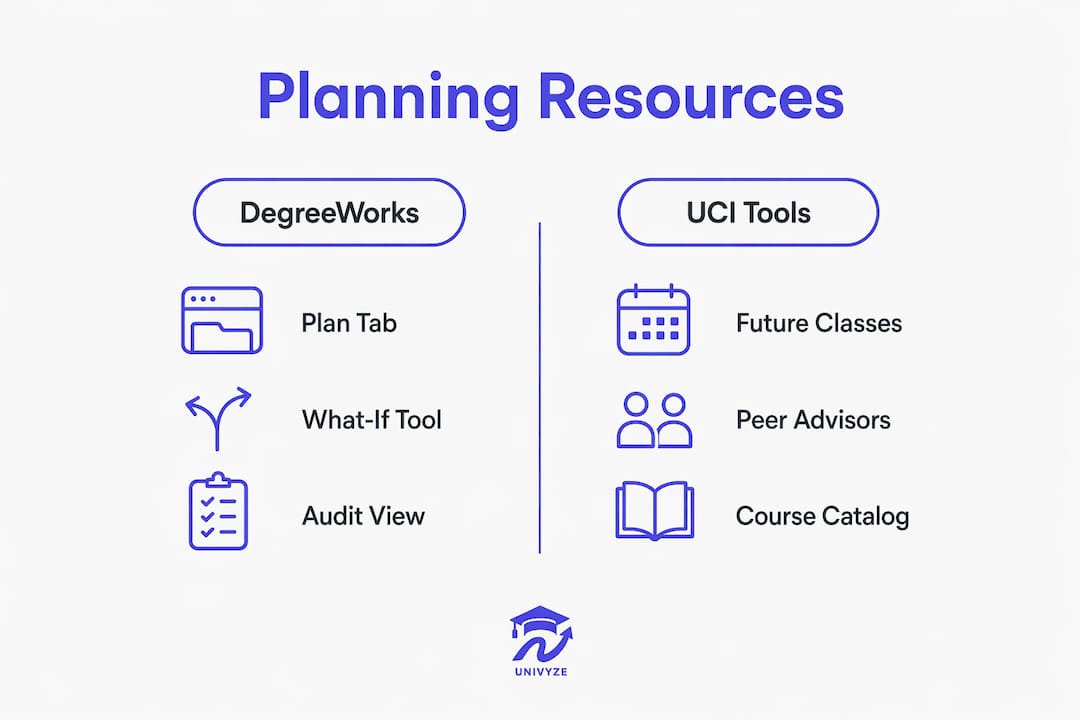
DegreeWorks works best when you pair it with UCI’s other planning tools. Each resource fills a gap the audit alone cannot cover.
UCI’s Future Classes tool lets you preview how upcoming courses apply to your degree audit before you enroll. That preview is critical for confirming that a course you plan to take in the spring actually satisfies the requirement you think it does. Use it every quarter during your planning session.
PAAs (Peer Academic Advisors) offer a faster, more informal channel than a full advising appointment. They handle quick DegreeWorks questions, help you read your audit, and can flag obvious errors in your plan. For complex issues, such as a double major or a late major change, go directly to a professional advisor.
The table below shows how each UCI resource supports a different part of your planning process.
| Resource | Best use case |
|---|---|
| DegreeWorks Plans tab | Build and visualize your term-by-term course sequence |
| Future Classes tool | Confirm course applicability before enrolling |
| PAA drop-in hours | Quick audit questions and minor plan adjustments |
| Professional advisor appointment | Major changes, exceptions, and long-term sequencing |
| UCI course catalog | Verify prerequisites and enrollment restrictions |
| UCI Registrar | Confirm official degree requirements and transfer credit status |
Linking your academic plan to career goals adds another layer of value. If you plan to apply to graduate school or a specific internship program, your advisor can help you sequence courses that satisfy both degree requirements and application prerequisites. That kind of planning requires a human conversation, not just a software audit.
Pro Tip: Cross-reference your DegreeWorks plan with the UCI course catalog at the start of each quarter. Catalog requirements can change year to year, and your audit may reflect an older version of your degree program.
Key takeaways
A term-by-term DegreeWorks plan built at UCI is only as strong as the advisor validation and quarterly updates that support it.
| Point | Details |
|---|---|
| Start in the Plans tab | Use DegreeWorks’ Plans feature, not just the audit view, to build a semester-by-semester course sequence. |
| Validate with your advisor | Book an advising appointment during weeks 1–10 each quarter to confirm your plan reflects current requirements. |
| Account for nightly updates | DegreeWorks refreshes overnight, so major changes and transfer credits take up to one day to appear. |
| Use What-If before committing | Simulate major or minor changes in the What-If tool before declaring anything officially. |
| Treat the plan as a living document | Review and revise your plan every quarter as your course load, goals, or requirements shift. |
DegreeWorks is a starting point, not a finish line
I have watched a lot of students treat DegreeWorks like a contract. They build a plan in their first year, screenshot it, and assume the work is done. Then they show up to their senior year with three unmet requirements and no room in their schedule to fix them.
The tool is genuinely useful. The Plans tab gives you a visual structure that a spreadsheet cannot match. The What-If feature is one of the most underused resources at any UC campus. But DegreeWorks is not a replacement for advising. It is a draft you bring to your advisor, not a final answer you take to the registrar.
What I have found works best is a simple quarterly rhythm. Open your plan at the start of each quarter. Check what changed since last time. Book an advising appointment in weeks 2 or 3 before your enrollment window opens. Arrive with specific questions about the next two terms, not vague concerns about graduation. That rhythm catches problems early, when they are still fixable.
The students who graduate on time are not the ones who built the most elaborate plan. They are the ones who checked in on their plan regularly and adjusted it when life changed. DegreeWorks makes that process easier. Your advisor makes it accurate. The combination is what actually works.
— Ryan
Univyze and your UCI degree plan
DegreeWorks shows you where you stand. Univyze shows you where you are going. Univyze is a planning tool that integrates degree requirements with real course offerings into a dynamic, term-by-term dashboard. It accounts for AP credits, transfer credits, and summer sessions automatically, so your multi-year plan reflects your actual situation from day one.
Students use Univyze alongside their official UCI audit to get a clearer picture of their path to graduation. It is not a replacement for DegreeWorks or your advisor. It is the layer that connects the dots between your audit data and a realistic schedule. If you want to see your full degree plan mapped out term by term, join the Univyze waitlist and get early access. Always verify your final plan with your official UCI degree audit, registrar, and academic advisor.
FAQ
What is DegreeWorks at UCI?
DegreeWorks is a web-based degree audit tool that shows UCI students which requirements they have completed and which remain. It also includes a Plans feature for building a term-by-term course sequence toward graduation.
How often does DegreeWorks update at UCI?
DegreeWorks updates nightly from the university’s student information system. Major declarations, course adds, and transfer credits typically appear in your audit the following day.
Can DegreeWorks replace my academic advisor?
No. DegreeWorks is a planning aid, not a substitute for advising. Advisors provide department-specific guidance, handle exceptions, and catch sequencing issues the audit cannot flag on its own.
What is the What-If feature in DegreeWorks?
The What-If tool lets you simulate a new major or minor without changing your current audit. Use it to see how a potential change affects your remaining requirements before you commit officially.
When should I meet with a UCI academic advisor about my plan?
UCI advisors are available for appointments during weeks 1–10 of each quarter. Book an appointment in weeks 2 or 3, before your enrollment window opens, to review your DegreeWorks plan and confirm your next term’s course selections.